Custom Web Design and Development Services – A Practical Guide…
Are you searching for a social media marketing agency near me to grow your business?…


In this guide, we will explain what is a Parent Page in WordPress and how it helps organize your website.
WordPress pages are different from WordPress blog posts due to their static nature. If you want to change or update blog posts you can do it easily but the WordPress pages will stay evergreen with content secured in it. Some important WordPress pages are the About us page or the Contact us Page.
To facilitate readers in comprehending your content on WordPress and increase traffic to your sites, WordPress provides the option to organize your materials. This not only hits the readers, but your site will also rank higher in search engines. The reason is, search engines love pages that are more organized and readable.
The main page of WordPress which contains all sublinks of your posts as a drop-down is known as a parent page. Understanding what is a Parent Page in WordPress is essential for organizing your website and improving user experience and SEO.
The parent page not only improves readability but also draws readers’ attention to other connected pages and content. When visitors search for certain material, they will quickly browse to your other child pages, increasing traffic to your fresh blog entries. Your material on a specific topic will also appear to be more extensive.
The main page keyword is also present in the URLs of child pages that are stacked within the parent page.
You can create as many parent pages as you want. They will appear in your default menu with child pages embedded in them. You may also make any existing page a parent page and then add relevant links as child pages. To create a parent page follow these steps.
You may add multiple child pages on these parent pages which will appear in the drop-down menu.
Now you have a Parent page, you can relate your subpages to it in the following way.
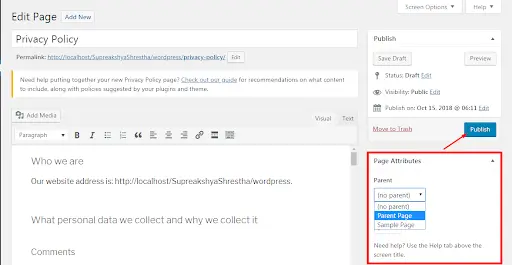
Now again double-check your site to ensure all of the settings are restored. Your child pages will appear with a prefix in your Dashboard ‘Pages » All Pages’. Whenever users visit your site, these subpages will appear as drop-downs of your Parent Page.
Sometimes, beginners find it difficult to create parent pages in WordPress or subpages due to the absence of the “Attributes” option. It is because this option is temporarily off your settings. To resolve this,
Your Page Attributes will now be visible on the Page settings option.
Whenever you want to add or delete a child page, you need to edit it manually. There are methods as well to list your child’s pages on the main Parent Page. For this, follow the following methods.
After creating your Parent and Subpages, it is necessary to list your subpages on the main page. This will show your site’s efficiency as well. You can do this simply by using a plugin. For this,
As WordPress site is all about customization, you can change the appearance of the list by using custom CSS as well. View the preview after applying the changes. You may use the following CSS to edit your settings.
ul.page-list.subpages-page-list {
    list-style: none;
    list-style-type: none;
    background-color: #eee;
    border: 1px solid #CCC;
    padding: 20px;
}
Hence, using shortcodes you may edit depth, adjust the number of pages, add or remove items, etc.
If you are an advanced user or WordPress expert, then you can edit your child’s pages using different codes as well. Though this method is easy, it will not be convenient for beginners. If you are a beginner you can Choose Forizech WordPress Development services
For this, you also need to install a specific plugin and then enter a specific code. You may enter the following code.
function wpb_list_child_pages() {
global $post;
if ( is_page() && $post->post_parent )
    $childpages = wp_list_pages( 'sort_column=menu_order&title_li=&child_of=' . $post->post_parent . '&echo=0' );
else
    $childpages = wp_list_pages( 'sort_column=menu_order&title_li=&child_of=' . $post->ID . '&echo=0' );
if ( $childpages ) {
    $string = '<ul class="wpb_page_list">' . $childpages . '</ul>';
}
return $string;
}
add_shortcode('wpb_childpages', 'wpb_list_child_pages');
There is also a shortcode as well so you don’t need to change the templates of your parent page.
If you are finding code methods difficult then stay relaxed. We have also brought another simple method that lets you list your child’s pages on the Parent Page easily. For this, you need to edit your template theme simply using page.php or create your own custom template.
This custom theme is editable so your changes will be at the risk of disappearance. To avoid this, simply create your own child page themes and make changes to them.
You can place the subpage wherever you like using the following code in your template.
<?php wpb_list_child_pages(); ?>
Now that you understand what is a Parent Page in WordPress, you can structure your website better, improve navigation, and boost SEO. Learning what is a Parent Page in WordPress is essential for every website owner using WordPress.
Hence you can enlist your sites as Parents or subpages using our guide if you have not done it yet.
If you have any questions regarding “What is a Parent Page in WordPress“, feel free to contact via email or call us at: +92 3097018703
Disclaimer: Above information is subject to change and represent the views of the author. It is shared for educational purposes only. Readers are advised to use their own judgement and seek specific professional advice before making any decision. Forizech Website Development Firm is not liable for any actions taken by reader based on the information shared in this article. You may consult with us before using this information for any purpose.

Are you searching for a social media marketing agency near me to grow your business?…

Are you searching for a social media marketing agency near me to grow your business?…
WordPress pages are different from WordPress blog posts due to their static nature. If you…